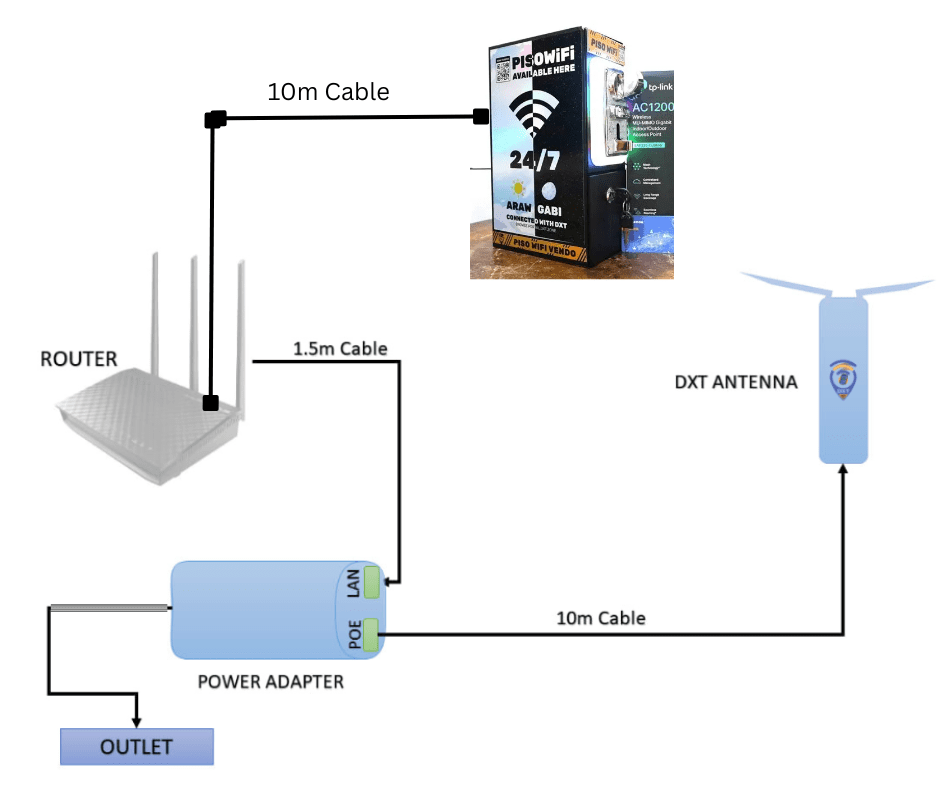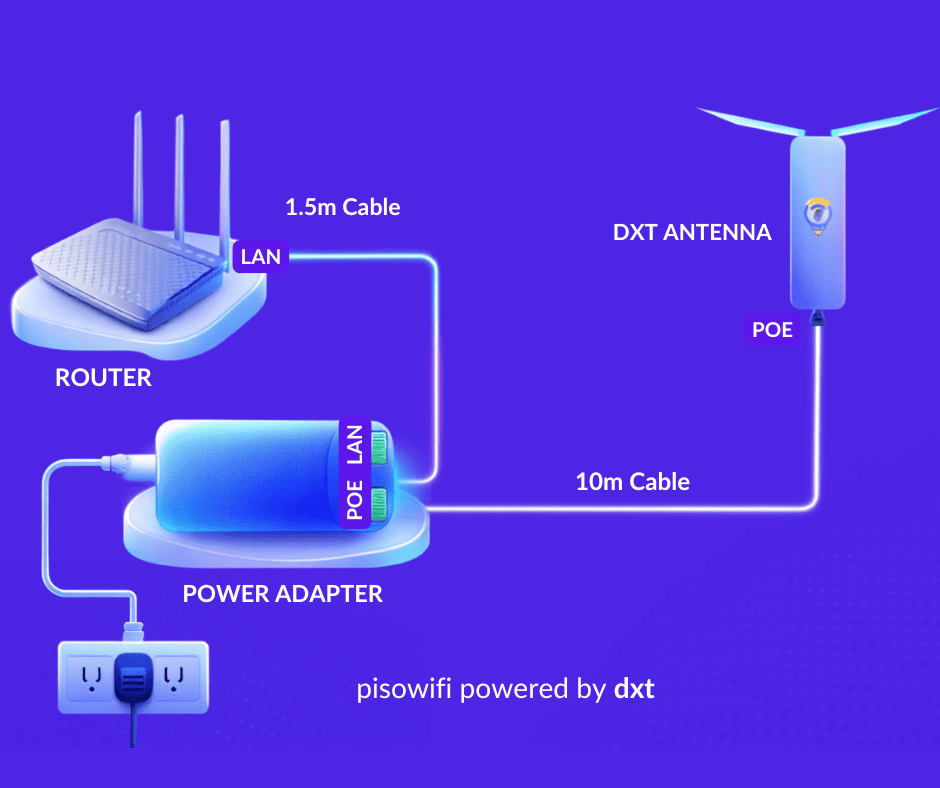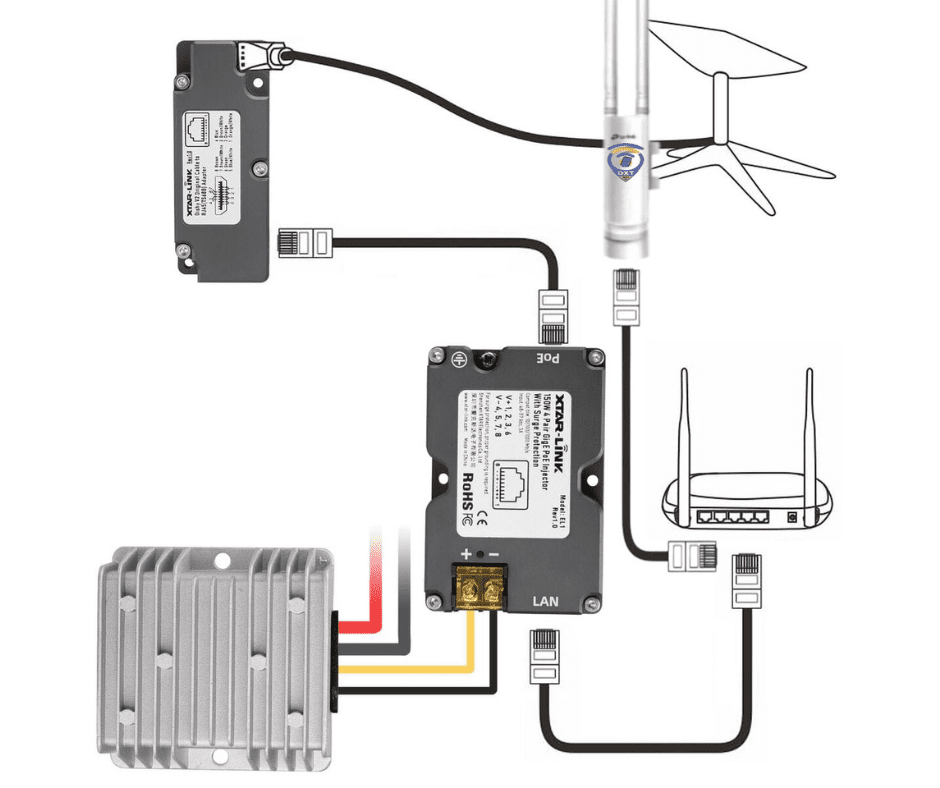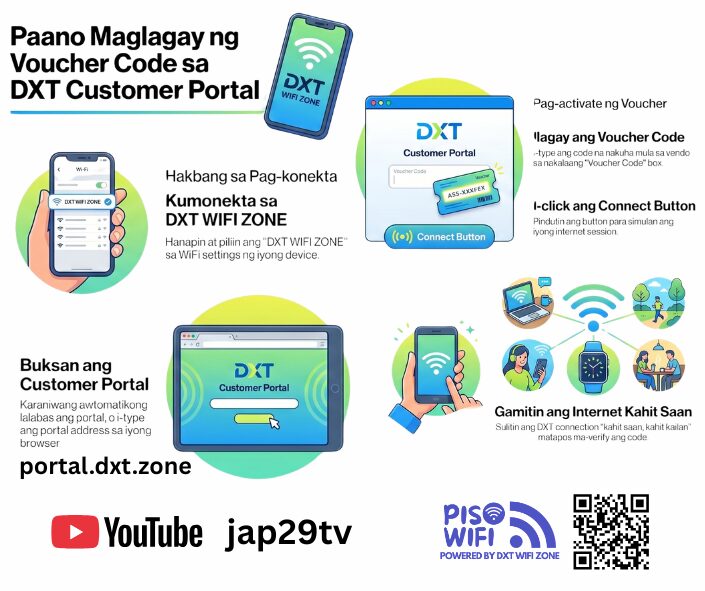
Check nyo ito para wala tayong makalimutan sa pag sisimula dito sa DXT. Here’s your on-boarding guide and we hope mabigyan pa namin kayo ng better service as we grow together sa team.
01 – Unboxing your First DXT WiFi Package
ALL Package
-
2x3ft Tarpaulin
-
DXT Activation Card
-
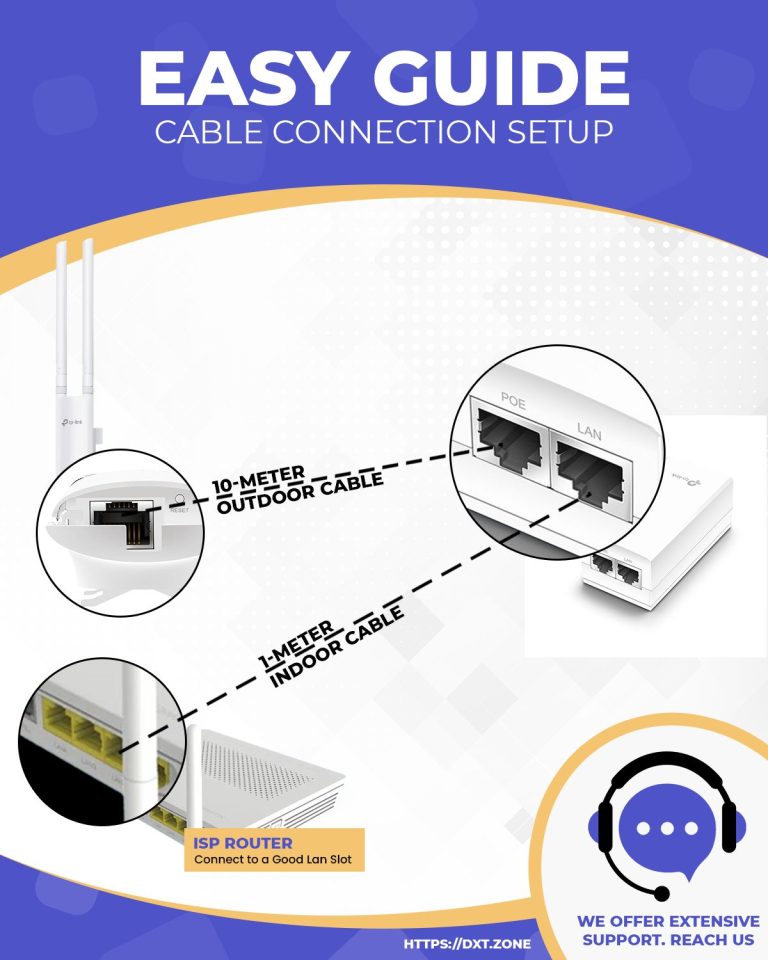
CAT6 Lan Cable 1 meter
-
CAT6 Lan Cable 10 meters
-
TP Link Outdoor AP (DXT Config)
-
EAP 225 – Business Pro
Marami ngayon sa mga commercial router na provided ng mga ISP ay naka lock ang router port. Alamin kung ano ang router at humanap ng paraan para maiunlock ito. Kung matagal na hindi nagagamit ang port, siguraduhing malinis yung port bago isaksak.
Pag nag na ang portal, makikita mo na hindi pa registered ang AP na ito. Dumerecho ka sa iyong browser at itype ang https://dxt.zone at iclick ang register. Sundan ang video na ito para mairegister mo ang antenna mo.
02 – Accessing Your Dashboard & Securing Your Account
Securing your Account
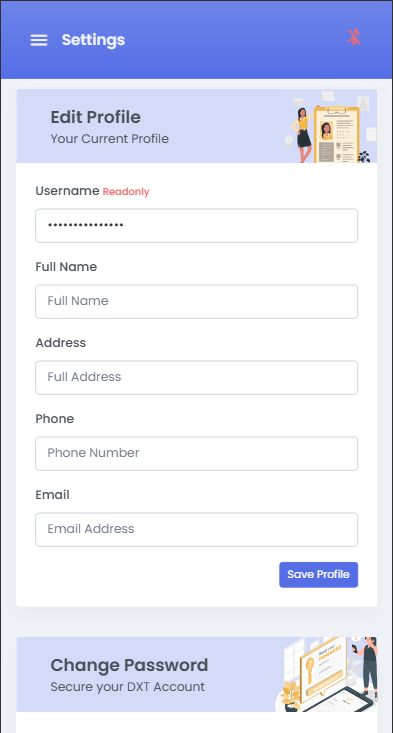
- Current Profile – Including Full Name, Address, Phone, Email. Kapag walang laman ang mga ito, mahihirapan kaming mag reset ng iyong password para makuha mo ito dahil kailangan ito para maikumpara kung ikaw ang totoong nag mamay ari ng account.
- Change Password – Siguraduhing secured at walang nakakaalam ng password mo. Ayaw natin na may nag llogin na iba ng account mo na ikaw lang dapat ang nakakaalam.
- Bank Information – Kapag nagkaron ka ng kita mula sa referrals o sa mga online payments, dito namin ito ipapadala. Pwede mo naman sya lagyan sa tuwing mag wiwithdraw ka. Pero hindi ka makakapag encash ng pera kapag hindi ito nalagyan.
Checking AP Status
- Active – Connected ang iyong AP at Gumagana
- Offline – Maaring walang connection ang iyong internet o nakapatay ang AP
- Prism – Connected ang AP mo dahil sa DXT Prism Network kahit wala kang internet sa ISP (Business Pro Only)
03 – Setting Your WiFi Configuration
-
Pumunta ulit sa
-
Go to Device Page
-
Makikita mo dito ang ilang impormasyon.
-
Palitan ang Device Name – Ito yung lumalabas na pangalan kapag mag babayad ang mga customers mo.
-
Set Location – Para makita mo sa map yung deployed location mo ng AP mo (Gamitin lang ang Set Location kapag katabi ng phone mo ang AP)
-
Network Speed – By default dahil phone lang ang usual na clients ng Piso WiFi, naka limit tayo sa 5MB/s. Kung gusto mo ito babaan, pick ka lang from 1 to 5.
-
Custom SSID – Ito yung magiging name ng Piso WiFi mo. Kapag pinalitan mo to at gusto mo gumawa ng centralized internet connection (Multiple AP) palitan mo lang din ng SSID yung mga susunod mong AP. Kapag pinalitan mo na ang SSID mo, pwede ka na mag set ng rates
-
Payment Options – Voucher ay hindi napapalitan, pwede mo activate ang Maya, GCash, at Vendo. Ang vendo ay magiging active lang kapag may vendo sa na naka pair sa AP mo.
-
WiFi Rates – Kung naka custom SSID ka, pwede mo rin icustomize ang iyong presyo. Click show kung gusto mo maging available yung oras na yun para sa customer and alisin naman kapag hindi.
-
Music Option – Pwede ka pumuli ng music para kapag nag open ng portal ang customer ay tutunog ito.
-
Theme Selection – Pwede mo palitan ang itsura ng portal. Template selection tayo sa ngayon.
-
Custom Banners – Para sa mga naka subscribe ito, dahil mag uupload na tayo ng images, kailangan ng storage neto at nag ooffer tayo ng ganun via our XTR Cards. Pwede mo palitan yung mga images na gumagalaw sa portal mo.
Note for Client Speed
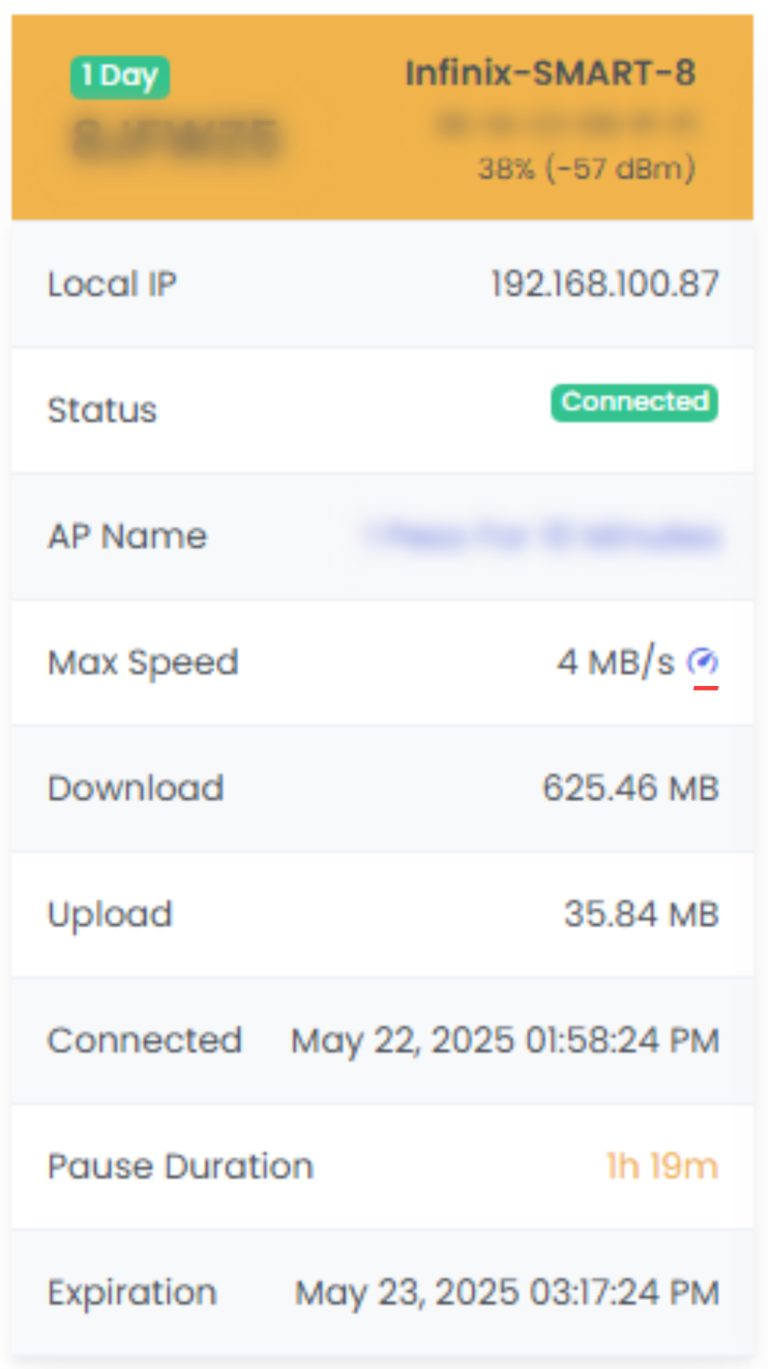
Kung gusto mong babaan per device, pwede rin ito, click mo lang yung Max Speed ng isa sa mga Clients tapos pumili ng speed.
NOTE for Default SSID
Naka default sa DXT ᯤ WiFi Zone ang AP pag sinimulan ito. Kung idedefault mo lang ito, pati ang rates nito ay naka default. Pag gusto mo ulit bumalik sa centralization ng DXT, pwede mo lang tanggalin yung pangalan ng SSID na pinalitan mo.
NOTE FOR MUSIC OPTIONMay mga lumang browser na gagana agad ito, pero sa modern phones, kailangan muna pumindot o maginteract ng user bago ito tumunog.
Ito ang mga pinaka common configuration na available parehas sa Starter Package at sa Business Pro. Yung mga advanced ay magiging available sa ibang guide.Once na tapos ka na, maaari ka na mag punta sa WiFi ng device mo, tignan mo yung SSID na pinili mo, tapos mag connect ka na.Congrats! Naka fully setup na ang portal mo. -
PAANO MAG REGISTER NG ACCOUNT SA DXT WIFI ZONE PORTAL
 1. Go to WIFI CODES and click CONVERT CODES
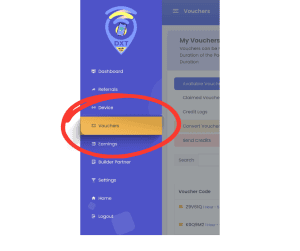 1. Go to WIFI CODES and click CONVERT CODES
PAUSE TIME AND SPEED CONFIGURATION
Hotspot owners can enable pause time for their clients. However, unlimited pause time is not allowed, since it is one of the major causes of system failures in traditional Piso WiFi setups. Instead, the maximum pause time you can grant is equal to the client’s purchased session duration. This feature can also be completely disabled if preferred.
By default, DXT speed is set at 5 Mbps, which is more than sufficient for mobile devices. If you suspect that a client is using their connection to run a personal hotspot, you can reduce their speed limit to 1 Mbps to prevent abuse.
FREQUENTLY ASKED QUESTIONS (FAQs)
* Obtaining IP or Failed to Configure IP
Make sure your router’s firewall is on medium not high.
* Captive Portal Not Loading
If you experienced any of the following:
White Screen — Try again, client internet is slow / unstable.
Grey Screen with Message — AP is still booting up. You need to check the LAN cable going from your Router to your POE. Clean the router ports and make sure that the router port is accessible or your firewall is on medium at most.
* Captive Portal Error Dialog
If you are connected, and the following error shows, please do the following.
AP not Recognized — AP hasn’t notified the SYSTEM about its presence yet.
AP is Offline — AP is not Ready for Connections yet. The AP might be booting or starting up.
You are browsing with non-DXT AP — You are surfing using different connection which are not recognized by the SYSTEM. Turn off your Data and make sure you are connected to a DXT SSID AP and try again.
Device not Recognized or Unregistered Device — AP has not identified the Device yet. Wait for a moment while it checks your device.
Loaded with No Options — The main internet resource might be failing to provide the right resources or the native captive browser is out of date. Try Chrome (Android) or Safari (Apple) and browser for http://portal.dxt.zone
TERMINOLOGIES
BOARD STATUS:
ONLINE – vendo is online and has responded within the last 15 seconds.
HEARTBEAT MISSED – vendo has not responded within the last 15 seconds.
OFFLINE – vendo has not responded for at least 60 seconds.
UPDATE IN PROGRESS – vendo is required for an update. Reboot is prompted.
BOARD ACTIVITIES:
POLLING TOKEN — Naghihintay para maipares ang isang account.
WAITING FOR CLIENT — Ang DSV (DXT Smart Vendo) ay nasa idle mode na naghihintay para sa isang kliyente
TOKEN — Sinusuri ng DSV (DXT Smart Vendo) kung ito ay naka-pares pa sa isang account
WAITING FOR PAYMENT — Ang DSV (DXT Smart Vendo) ay may kliyente at naghihintay para sa bayad
VENDO REBOOTING — Ang DSV (DXT Smart Vendo) ay nagre-reboot
BOARD CONNECTIVITY:
WIRED – Ang vendo ay gumagamit ng LAN cable upang kumonekta sa cloud, na tinitiyak ang matatag na komunikasyon.
WIFI – Ang vendo ay kumokonekta sa iyong DXT WIFI AP Antenna at nakikipag-usap sa Turbo Server.
XX% — Ang DSV (DXT SMART VENDO) ay gumagamit ng WiFi (ang mga Pag-update ng Firmware ay nangyayari sa WiFi Mode).
Turbo XX% — Ang DSV (DXT SMART VENDO) ay nasa WiFi at nakakonekta sa Turbo Server.
Huwag umasa nang lubos sa 2.4 GHz WiFi, siguraduhing ang iyong vendo ay naka-wired o may lakas na hindi bababa sa 70%. Siguraduhing ang LAN port ng iyong router ay bukas.
Batay sa aming karanasan, ang mga hadlang tulad ng ulan, metal na pambalot, siksik na 2.4 ghz na daloy na frequencies, radyo interference, atbp. ay maaaring magdulot ng hindi matatag na koneksyon. Upang maiwasan ito, inirerekomenda ang wired na koneksyon para sa direktang komunikasyon sa router
Kung parehong aktibo ang WIRED at WIRELESS, inuuna ng vendo ang Wired na koneksyon at nag-iiwan sa Wifi bilang backup. Pinipigilan nito ang mga isyu na dulot ng hindi inaasahang problema sa LAN cable o router, lalo na sa mga kaso ng intermittent na koneksyon mula sa ISP.
Pakiusap, siguraduhin na ang iyong mga LAN PORT ay nakabukas at nagbibigay ng tamang koneksyon.
BOARD MAINTENANCE AND SAFETY NETS
Leaving a device for days can take a toll on any computing device. Here’s our safety net implemented to our DXT Board.
HARDWARE CHECKS — If the hardware becomes unresponsive for 120s, the system will automatically enter recovery mode and reboot.
CONNECTIVITY CHECKS — If the active connection changes, the system will switch to the available option (Wired or Wireless). If both fail after 5 attempts, it will reboot to refresh connectivity.
If an ISP connection spike causes issues, manually reboot the Vendo by unplugging and plugging it back in.
QUICK BOOT — Vendo will perform a quick recovery boot if it is idle and has been online for a duration of time.
PAUSE TIME AND SPEED CONFIGURATION
Hotspot owners can enable pause time for their clients. However, unlimited pause time is not allowed, since it is one of the major causes of system failures in traditional Piso WiFi setups. Instead, the maximum pause time you can grant is equal to the client’s purchased session duration. This feature can also be completely disabled if preferred.
By default, DXT speed is set at 5 Mbps, which is more than sufficient for mobile devices. If you suspect that a client is using their connection to run a personal hotspot, you can reduce their speed limit to 1 Mbps to prevent abuse.