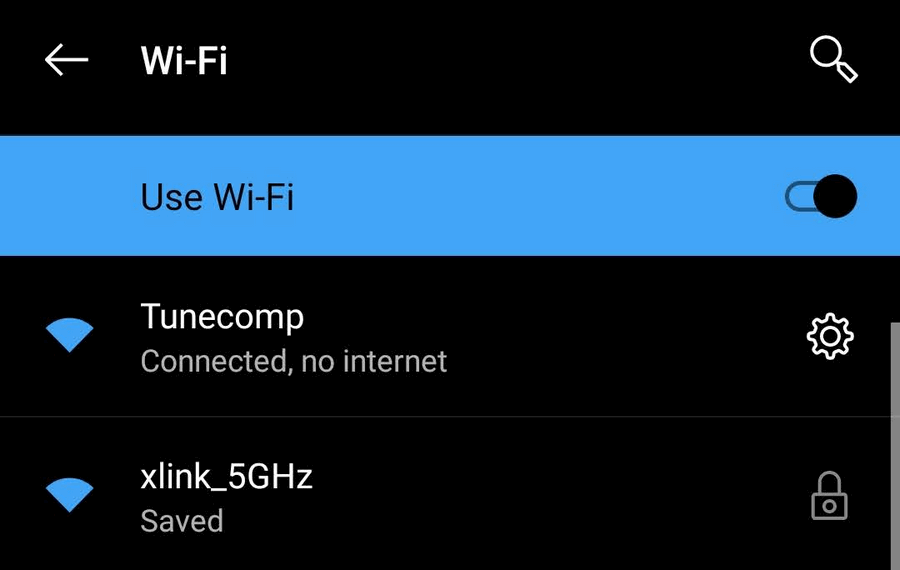
Connected without internet
“Connected without internet” is a common issue, and it usually means your device is connected to the WiFi router but can’t access the internet. Here’s a traditional but practical step-by-step approach to troubleshooting it:
Step-by-Step Troubleshooting
1. Check Other Devices
- Connect another device (like a phone or laptop) to the same WiFi.
- ✅ If others are working fine, the issue is with your device.
- ❌ If others also can’t browse: the issue is with the network.
2. Reboot the Basics
- Restart your device (phone/laptop).
- Restart your router/modem.
- Turn it off, wait 10-20 seconds, and turn it back on.
- Wait a few minutes for it to fully reboot.
3. Check Internet Source
- If your modem is connected to DSL, fiber, or cable, check:
- Are the LED lights on your modem normal? (Look for the “Internet” light – it should be steady, not blinking red.)
- If there’s no light or it’s red/flashing, call your ISP.
4. Check for ISP Outage
- Sometimes it’s not you, it’s them.
- Contact your Internet Service Provider (ISP) or check their website using mobile data.
- Some also post updates on social media.
5. Verify Router Settings
- Login to your router’s settings:
- Usually via browser: type
192.168.1.1or192.168.0.1. - Check if the WAN/Internet section has an IP address.
- If it shows 0.0.0.0, your router isn’t getting a connection from your ISP.
- Usually via browser: type
6. Forget and Reconnect to WiFi
- On your device:
- Go to WiFi settings.
- Forget the network, then reconnect and re-enter the password.
7. Check for IP/DNS Issues
- On a PC:
- Open the Command Prompt and type:
ipconfig /releaseipconfig /renewipconfig /flushdns
- This can fix IP address conflicts or DNS issues.
8. Disable/Enable Network Adapter (PC)
- Open Control Panel > Network and Sharing > Change adapter settings.
- Right-click on the WiFi adapter > Disable.
- After a few seconds, enable it again.
9. Reset Network Settings (as last resort)
- On mobile: Settings > General > Reset > Reset Network Settings.
- On PC: Settings > Network & Internet > Status > Network Reset.
Old-School Wisdom:
“Pag ayaw gumana, patayin mo muna, tapos buksan ulit.”
— Works 90% of the time for electronics since the ‘80s.